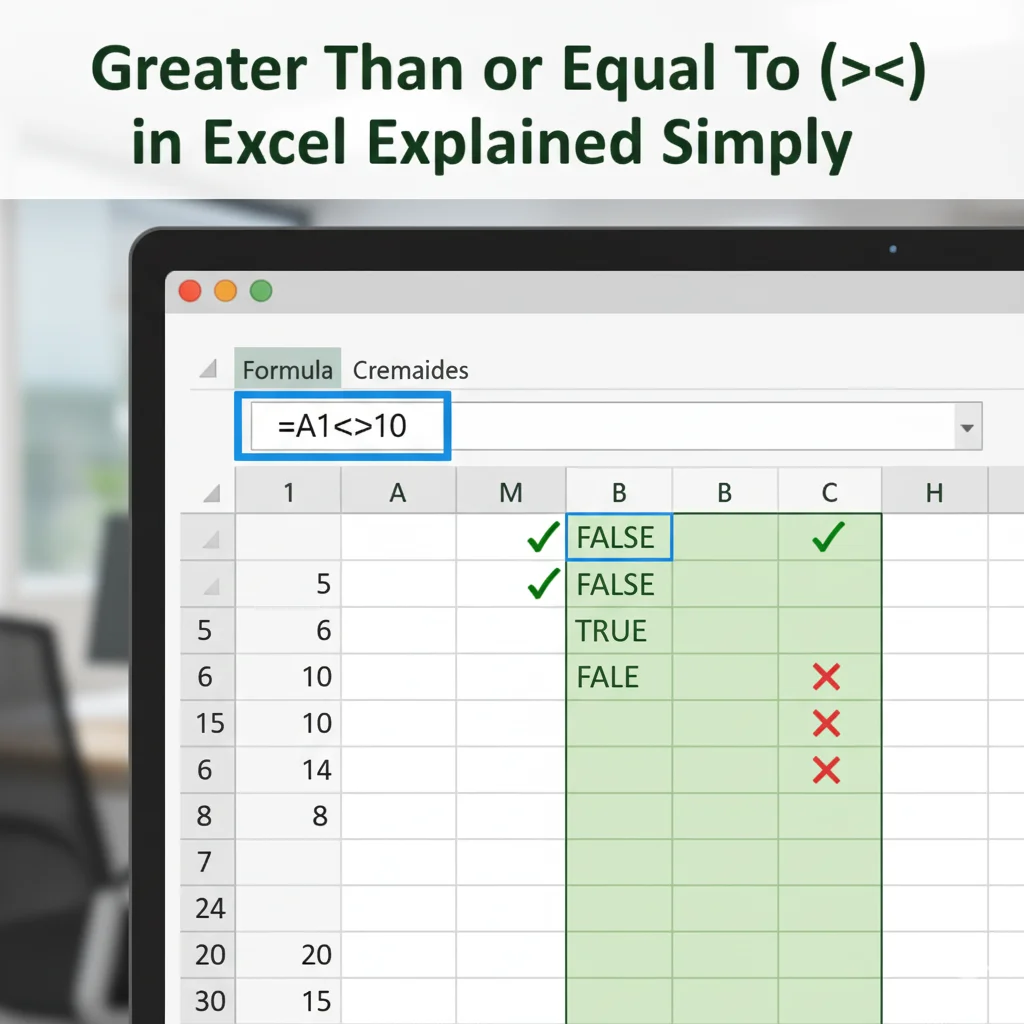
Have you ever seen the symbol ≥ or typed >= in Excel and wondered what it actually does? 🤔
Many beginners find the “greater than or equal to” formula in Excel confusing — but it’s simpler than it looks!
In this guide, you’ll learn:
- What “greater than or equal to” means in Excel
- How and when to use it correctly
- The difference between “>” and “>=”
- Real-life examples with easy formulas
- Common mistakes and how to fix them
By the end, you’ll be able to use this comparison operator confidently — whether you’re checking scores, sales data, or student grades in Excel.
🧠 What Does “Greater Than or Equal To” Mean in Excel?
In Excel, “greater than or equal to” means a value is either larger than another value or exactly the same.
You write it as:
>=
This symbol combines two mathematical signs:
- “>” (greater than) → means more than
- “=” (equal to) → means the same as
So together, “>=” checks if one number is greater than or equal to another.
Examples:
| Formula | Meaning | Result |
|---|---|---|
=A1>=10 | Is A1 greater than or equal to 10? | TRUE or FALSE |
=5>=3 | Is 5 greater than or equal to 3? | TRUE |
=7>=7 | Is 7 greater than or equal to 7? | TRUE |
=2>=8 | Is 2 greater than or equal to 8? | FALSE |
It’s a logical comparison operator, meaning it returns only TRUE or FALSE based on the condition.
📘 The Key Difference Between “>” and “>=” in Excel
It’s easy to mix up these two, but here’s how to remember:
| Operator | Name | Meaning | Example | Result |
|---|---|---|---|---|
> | Greater Than | Checks if a value is strictly larger | =8>5 | TRUE |
>= | Greater Than or Equal To | Checks if a value is larger or the same | =8>=8 | TRUE |
👉 Quick Tip:
If you want to include the value itself in your condition (like “10 or more”), always use >=.
If you want to exclude the exact number (only values above 10), use >.
Example:
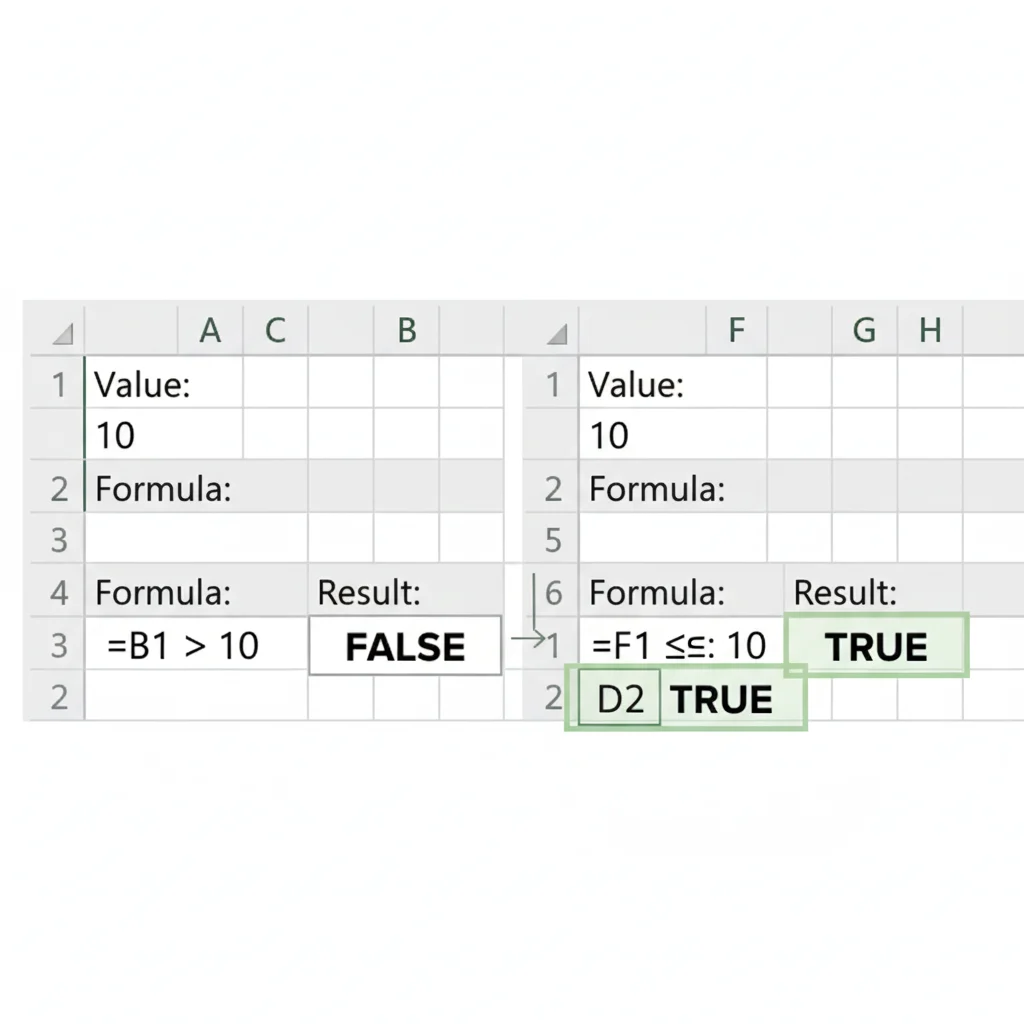
=A1>10→ counts values greater than 10 (11, 12, etc.)=A1>=10→ counts values 10 and higher (10, 11, 12, etc.)
💡 Common Mistakes and How to Avoid Them
Even experienced users sometimes make mistakes with Excel comparison formulas. Here are some common ones:
| ❌ Wrong Formula | ✅ Correct Formula | Why It’s Wrong |
|---|---|---|
=A1=>10 | =A1>=10 | The order matters! Always type >=, not =>. |
=A1>=“10” | =A1>=10 | Don’t use quotes unless comparing text. |
=A1>==10 | =A1>=10 | Too many equal signs. Only one is needed. |
👉 Fix Tip:
Always type “greater than or equal to” as >= — never reverse it.
📈 When to Use “Greater Than or Equal To” in Excel
You can use >= in Excel whenever you want to include a minimum threshold in your data check.
Here are common real-life examples:
- Checking passing marks:
=B2>=40→ Returns TRUE if the student scored 40 or more. - Sales target comparison:
=C2>=50000→ Checks if a salesperson met or exceeded a $50,000 goal. - Date validation:
=A2>=TODAY()→ Tests if a date is today or in the future. - Conditional Formatting:
- Highlight cells where the value is greater than or equal to 100.
- IF Formula Example:
=IF(A1>=60,"Pass","Fail")→ If the score is 60 or more, Excel shows “Pass.”
Memory Hack:
Think of “≥” as a door that includes the edge — everything above the limit and the limit itself passes through.
📉 When to Use Only “Greater Than” (>)
Use “>” when you want to compare strictly higher values — excluding equality.
Examples:
=A1>100→ Checks if A1 is more than 100.=IF(B1>18,"Adult","Minor")→ Marks only values above 18 as adults.=COUNTIF(A1:A10,">50")→ Counts numbers greater than 50, not equal to 50.
Quick Reminder:
If you’re checking for “or equal to,” always use >= instead.
⚖️ Quick Recap: “>” vs “>=” in Excel
| Comparison | Symbol | Includes Equal Value? | Example | Result |
|---|---|---|---|---|
| Greater Than | > | ❌ No | =5>5 → FALSE | Only larger numbers |
| Greater Than or Equal To | >= | ✅ Yes | =5>=5 → TRUE | Larger and equal values |
In short:
- Use “>” for only higher values.
- Use “>=” when you want to include the value itself.
🧮 Advanced Tips: Mastering Comparison Operators in Excel
If you want to become an Excel pro, understanding logical comparisons is key!
Here are some expert insights:
- Combine comparisons:
You can combine >= with AND or OR to check multiple conditions.=AND(A1>=50, A1<=100)→ TRUE if A1 is between 50 and 100. - Use with COUNTIF / SUMIF:
=COUNTIF(B2:B10,">=100")→ Counts all cells with values 100 or higher. - Use with Dates:
=SUMIF(A2:A10,">=01-Jan-2025",B2:B10)→ Adds up sales made on or after January 1, 2025. - Don’t confuse text and numbers:
Excel reads"100"(text) differently from100(number).
🧩 Mini Quiz: Test Your Understanding
Fill in the blanks with > or >=.
=A1__50→ Checks if A1 is 50 or more.=B2__100→ Returns TRUE only if B2 is above 100.=IF(C1__40,"Pass","Fail")→ Includes 40 as passing.=COUNTIF(A1:A10,"__500")→ Counts values 500 and above.=D2__TODAY()→ Checks if date is after today.
✅ Answers:
- = 2. > 3. >= 4. >= 5. >
❓ FAQs
1. What is the “greater than or equal to” symbol in Excel?
It’s written as >=, meaning a value is greater than or equal to another.
2. What does “>=” return in Excel?
It returns either TRUE or FALSE depending on whether the condition is met.
3. Can I use “>=” with text values?
Yes, but Excel compares them alphabetically (e.g., “B” >= “A” → TRUE).
4. What’s the difference between “>” and “>=”?
“>” excludes equality; “>=” includes it.
5. How can I use “>=” in an IF formula?
Example:
=IF(A1>=60,"Pass","Fail")
This checks if the score is 60 or higher.
✅ Conclusion
Now you know what “greater than or equal to in Excel” means and how to use it correctly!
Remember:
- Use “>” for values strictly higher.
- Use “>=” to include the value itself.
This simple comparison trick can make your Excel formulas more powerful — from grading sheets to sales reports.
Keep practicing, and soon, logical formulas will feel as easy as typing your name!

Isla Merrin is a language and writing expert at Definevs.com, creating simple, engaging guides to help readers master words, grammar, and modern English usage.